

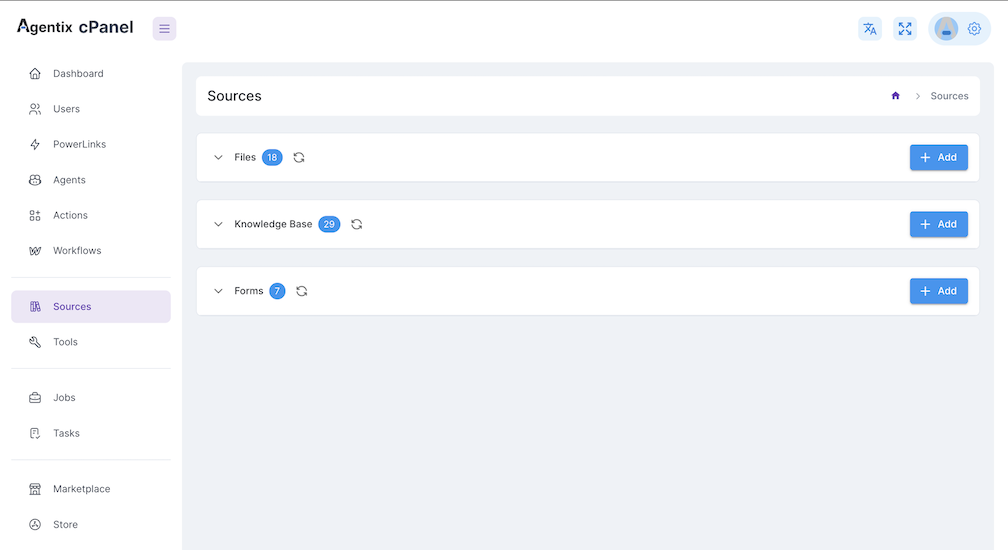
Sources are globally managed and reusable across different workflows and agent assignments.
Types of Sources
📁 Static Files
Upload files like PDFs, images, Excel or DOCX that can be previewed by agents or shown to users during a task.
📚 Knowledge Base (RAG)
Index content from files, URLs or text and allow agents to query this data using retrieval-augmented generation (RAG).
📝 Forms
Define interactive HTML forms to collect user input during tasks, shown dynamically to the user by the agent.
Static Files
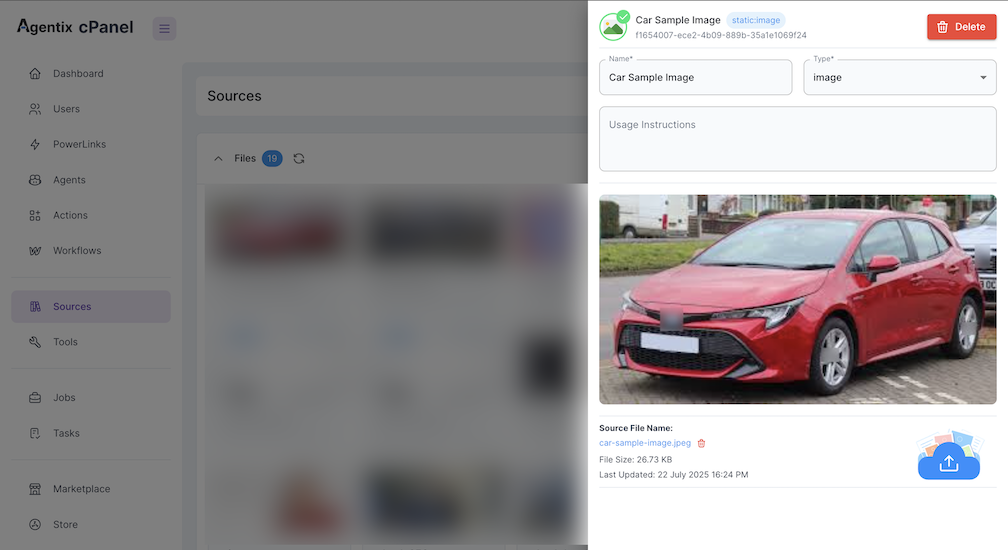
Static files are uploaded assets that can be shown to the user or previewed by the agent as part of a task. Common file types include:- Images (PNG, JPG, etc.)
- PDFs
- Excel sheets
- DOCX or text documents
Static files do not require processing — they are usable as soon as they’re uploaded.
Example of Image - Static File Source
📚 Knowledge Base (RAG)
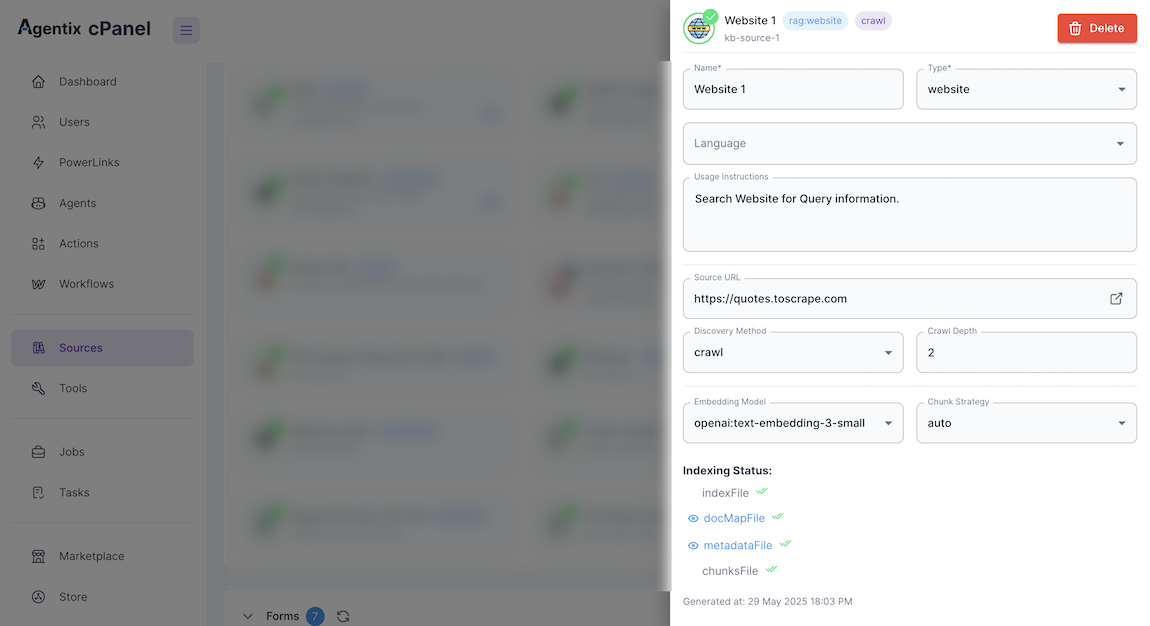
Knowledge Base sources enable agents to perform contextual search using retrieval-augmented generation (RAG). This allows an agent to answer user questions based on:- Uploaded files (PDF, TXT)
- Website URLs
- Raw pasted text
Agents can only query RAG sources once the status is
ready.Example of Knowledge Base Source
📝 Forms
Forms allow you to collect structured input from users during a conversation. These are defined using valid HTML<form> markup and rendered to the user inline during a task.
Forms must include a valid
<form> element and can contain any HTML inputs (text fields, dropdowns, radios, etc.)Example
Source Readiness Matrix
How to Create a Source
1
Open cPanel → Sources
Navigate to Sources in the sidebar to manage or add new sources.
2
Select the Source Type
Choose between Static Files, Knowledge Base or Form.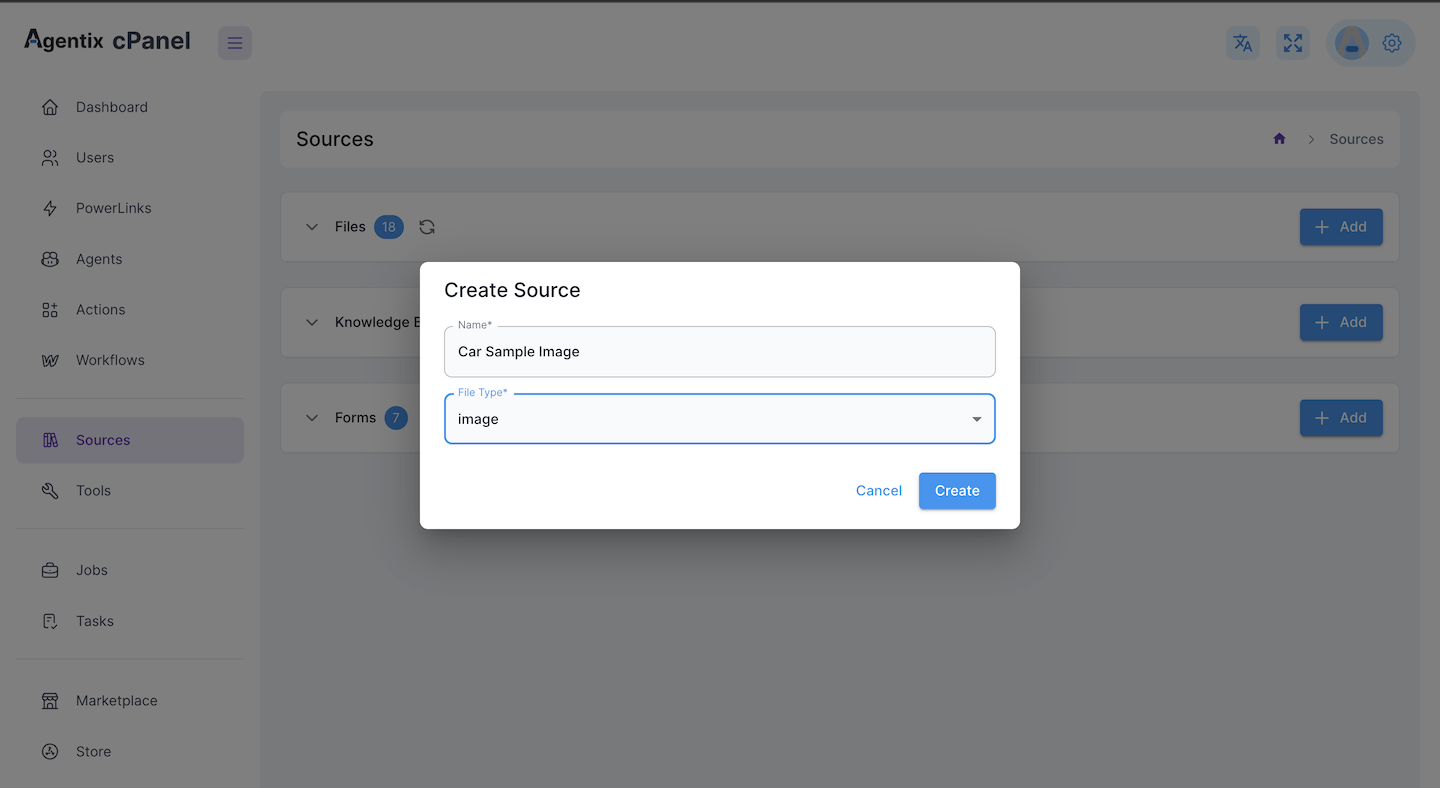
3
Add Your Input
- Upload file / paste text / insert HTML form
4
Save and Tag
Give your source a name and optional tags. For RAG, wait for
ready status before using.Continue to the Tools section to define what your agents can do with these sources.