
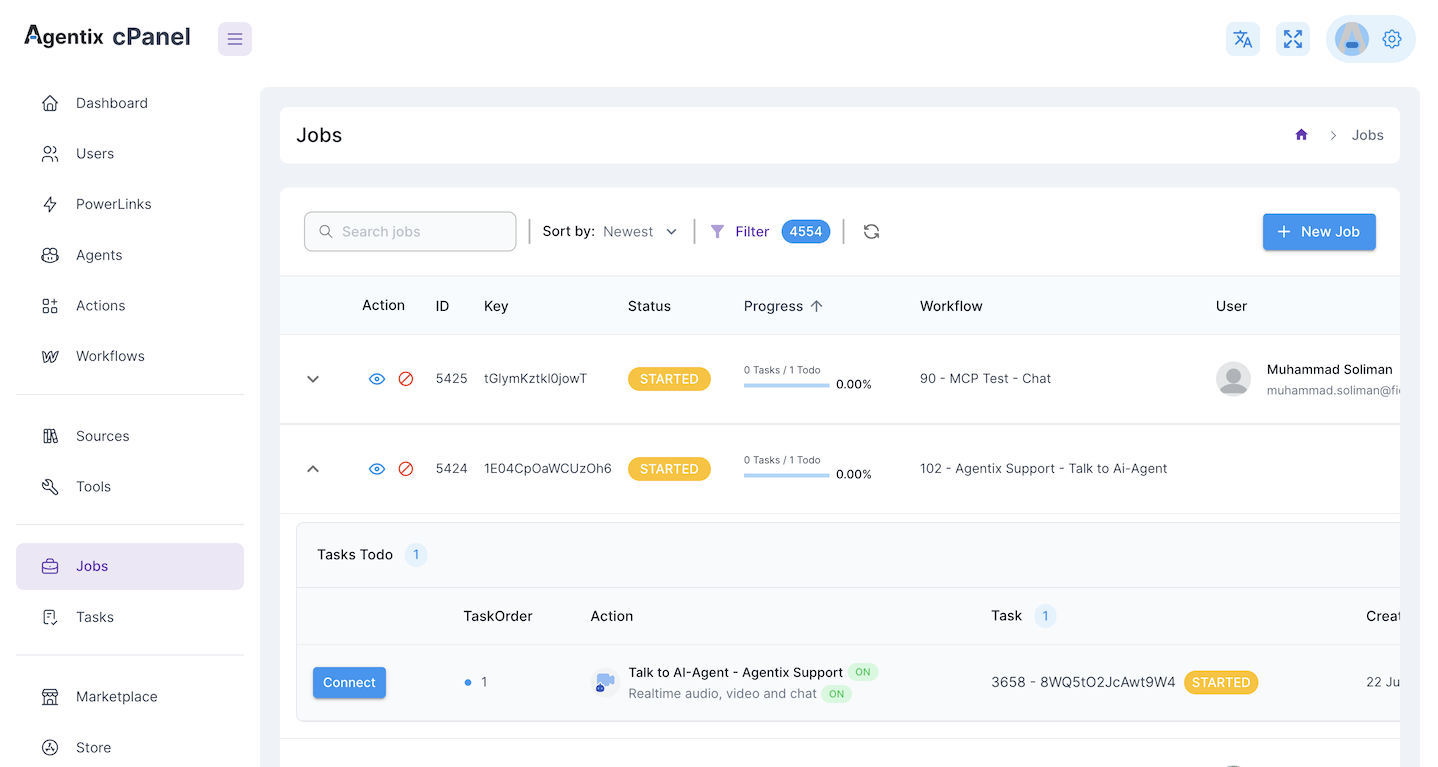
Jobs List Overview
Each row in the table represents a job instance and includes:- 👁️ Action: View job or cancel it.
- 🆔 ID / Key: Unique identifiers for tracking.
- 🟡 Status: Current state (e.g.
STARTED,DONE,REJECTED). - 📈 Progress: How many tasks are completed versus pending.
- 🔄 Workflow: The workflow that initiated the job.
- 👤 User: The user or entity associated with the job.
Expanding a Job
Click the arrow icon (▾) next to a job to expand its task list.- The “Tasks Todo” panel shows the pending or active tasks.
- You can see task order, assigned actions, task IDs and statuses.
- If real-time tasks are enabled (e.g.,
Talk to AI-Agent), you can Connect directly from here.
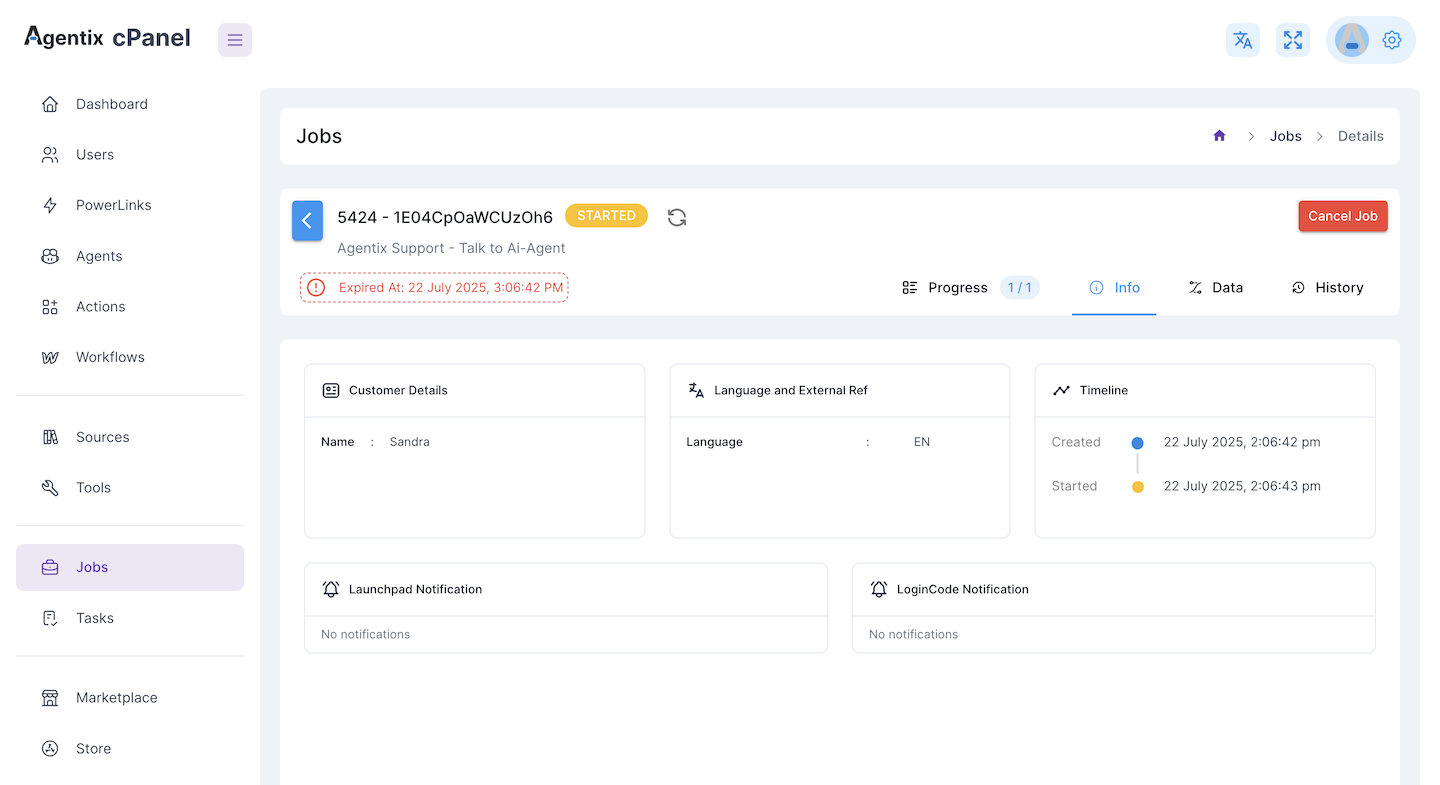
🧾 Header Summary
- Job ID & Key: Uniquely identifies the job instance.
- Status: Indicates if the job is
STARTED,DONE,CANCELEDorREJECTED. - Expiration Warning: If the job has passed its validity period, a red notice appears.
📂 Tabs Explained
The view includes multiple tabs to inspect various aspects of the job:1. Progress
Shows task completion progress. Example:1 / 1 means one task expected, one completed.
2. Info
Displays:- Customer Details: Name and basic metadata.
- Language and External Reference: Shows language used during the job (e.g.,
EN). - Timeline: Shows
CreatedandStartedtimestamps. - Notifications: Launchpad and LoginCode alerts (if triggered during the job).
3. Data
Used to inspect runtime input/output data and system config related to the job. This includes transcripts, LLM usage and job-wide metadata.4. History
Chronological record of all major events (e.g., job creation, status changes, cancellations).The Job Details page is your primary source of truth for understanding what happened in a job — from start to end, including the customer, actions, tools and decisions taken by the system or agent.
Job Status Types
Jobs can be in one of several statuses:NEW: Created but not started yet.STARTED: Actively running.DONE: Successfully completed.CANCELED: Stopped manually or by rule.REJECTED: Rejected by an agent or validation logic.
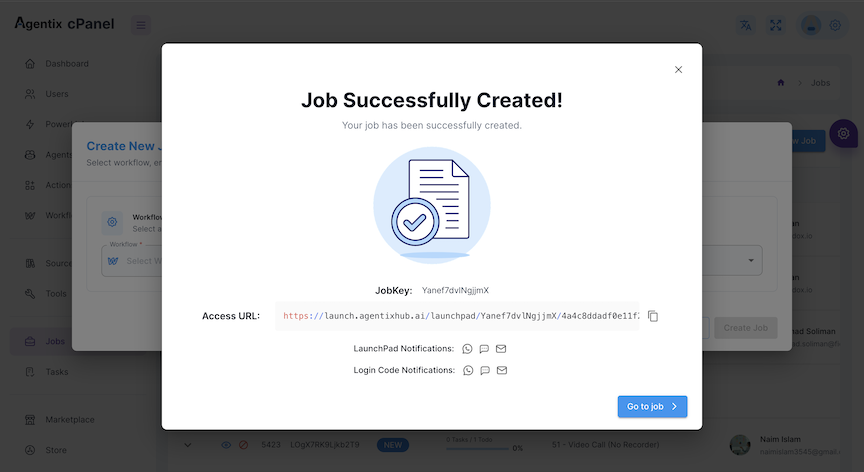
➕ Creating a New Job
Click the + New Job button on the top-right of the Jobs page to launch a job manually.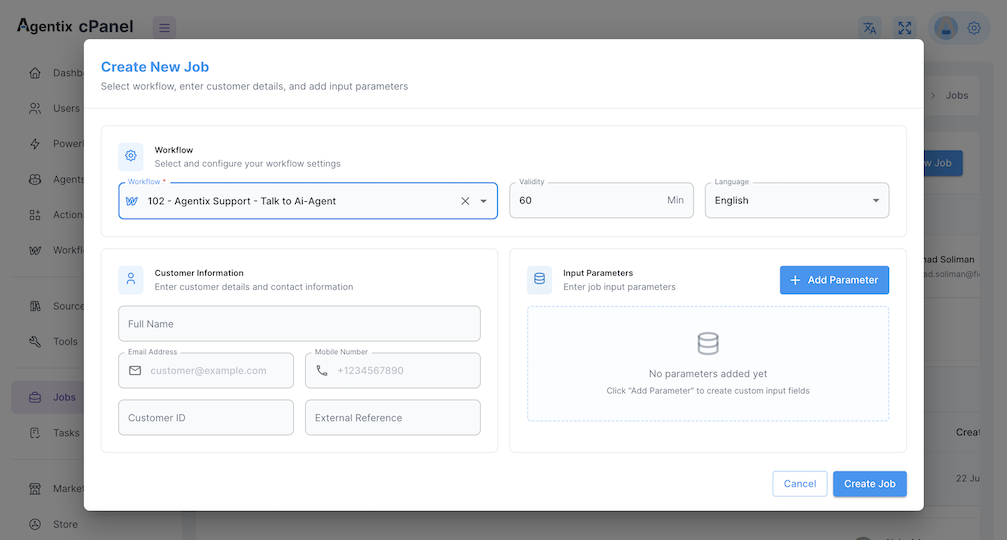
1
Select a Workflow
Pick a predefined Workflow from the dropdown. Each workflow controls:
- What the job does
- What tasks are triggered
- Which agents or tools are used
2
Enter Customer Information
Provide basic contact information for the customer:
- Full name
- Email address
- Mobile number
- Optional:
Customer IDorExternal Referencefor traceability
3
Add Input Parameters
If the workflow expects inputs (e.g., user ID, issue type, plan code):
- Click Add Parameter
- Enter key-value pairs that will be available to the agent and tools
Create the Job
After filling the required fields:
- Click Create Job
- The new job will appear in the Jobs list
-
Progress starts automatically based on how tasks are defined in the workflow