

Step-by-Step Guide
1
🔐 Log in to Agentix cPanel
- Open the Agentix cPanel in your browser
-
Login using your Job-Hub User credentials
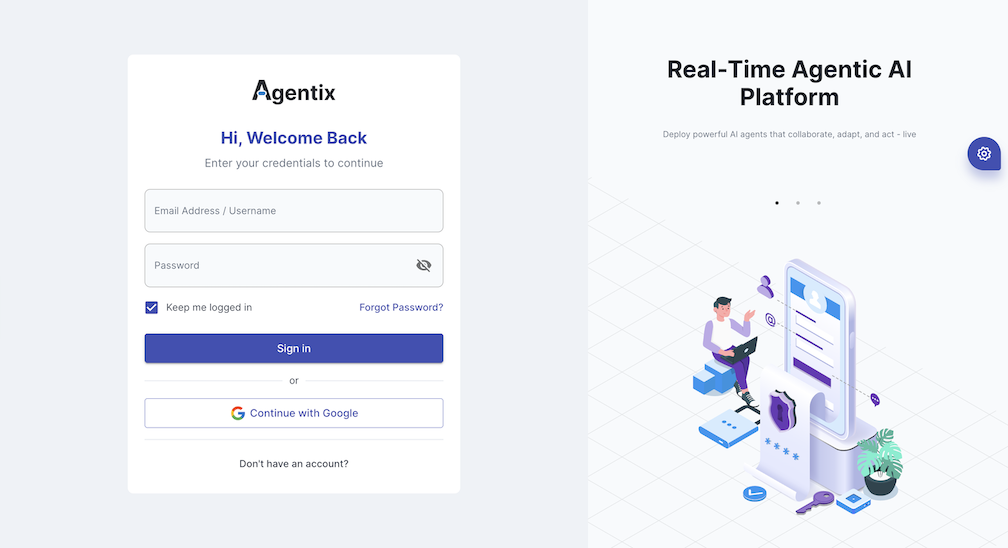
Once logged in, You’ll land on the dashboard, Your dashboard shows only the Jobs and Tasks assigned to you — simple and focused.
2
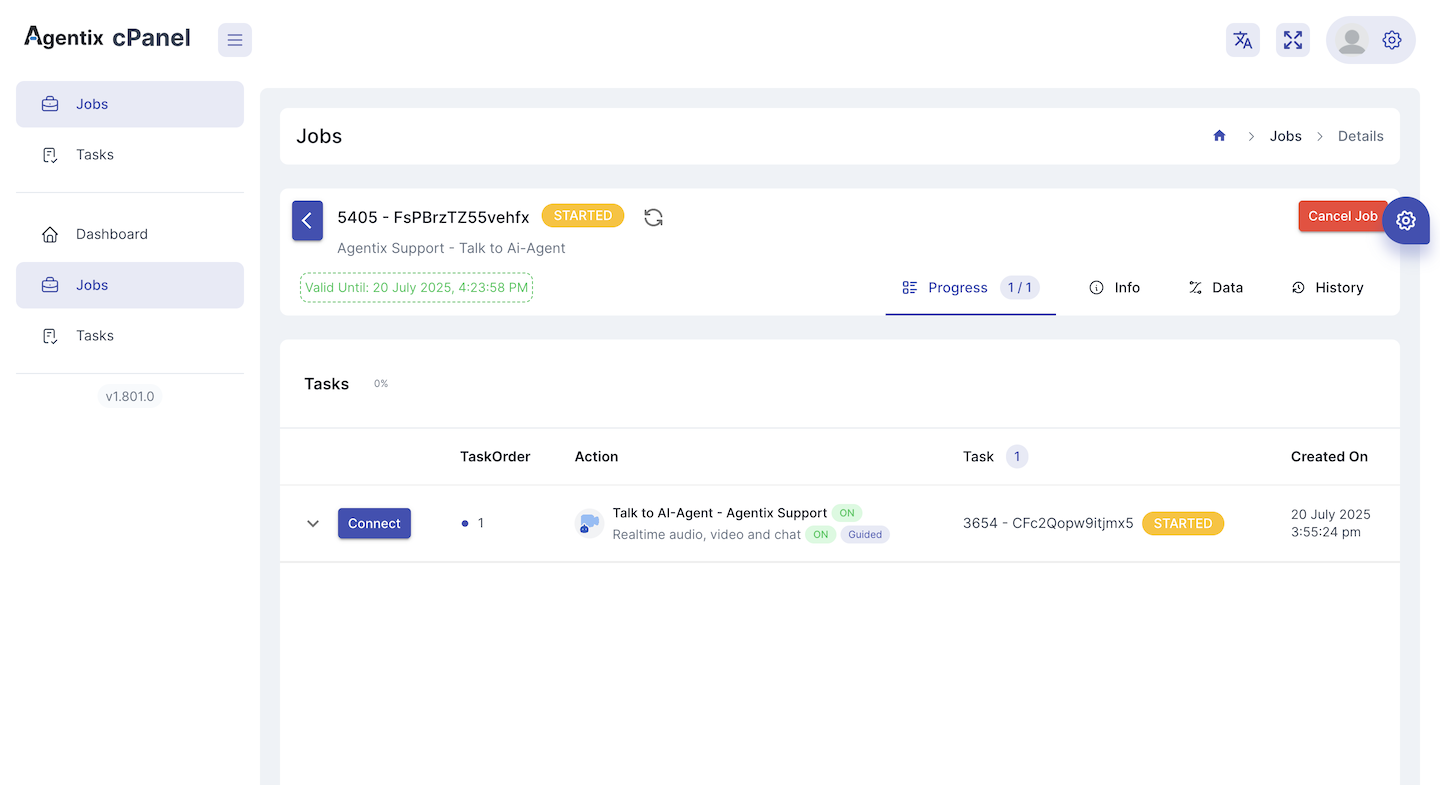
📋 Browse Jobs and Select the Job
- In the Jobs page, browse the list of available jobs
- Use filters if needed (by status, job or customer name)
-
Click on a job to open its details and see the current Task avaiable to connect to.
3
🧭 Connecting to Task
- After opening a task, click Connect
-
You’ll be taken to the task workspace
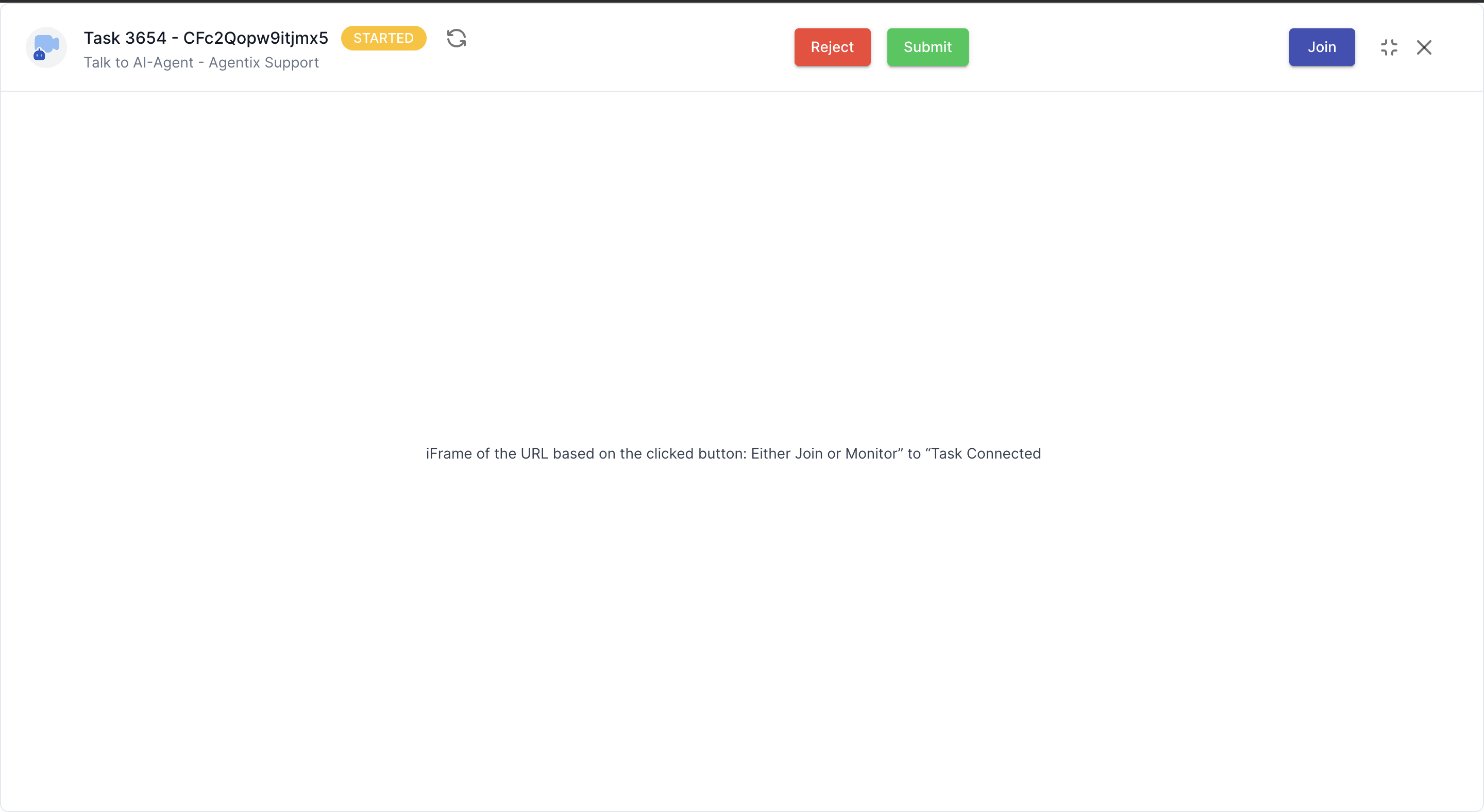
You must connect before starting any interaction or guided session.
4
🤝 Join Real-Time Task (Guided)
- If the task involves real-time interaction (chat, video or co-browsing), click Join to enter the session
- You’ll be connected to the customer and AI agent (if present)
-
Respond, assist or guide the customer based on the task instructions
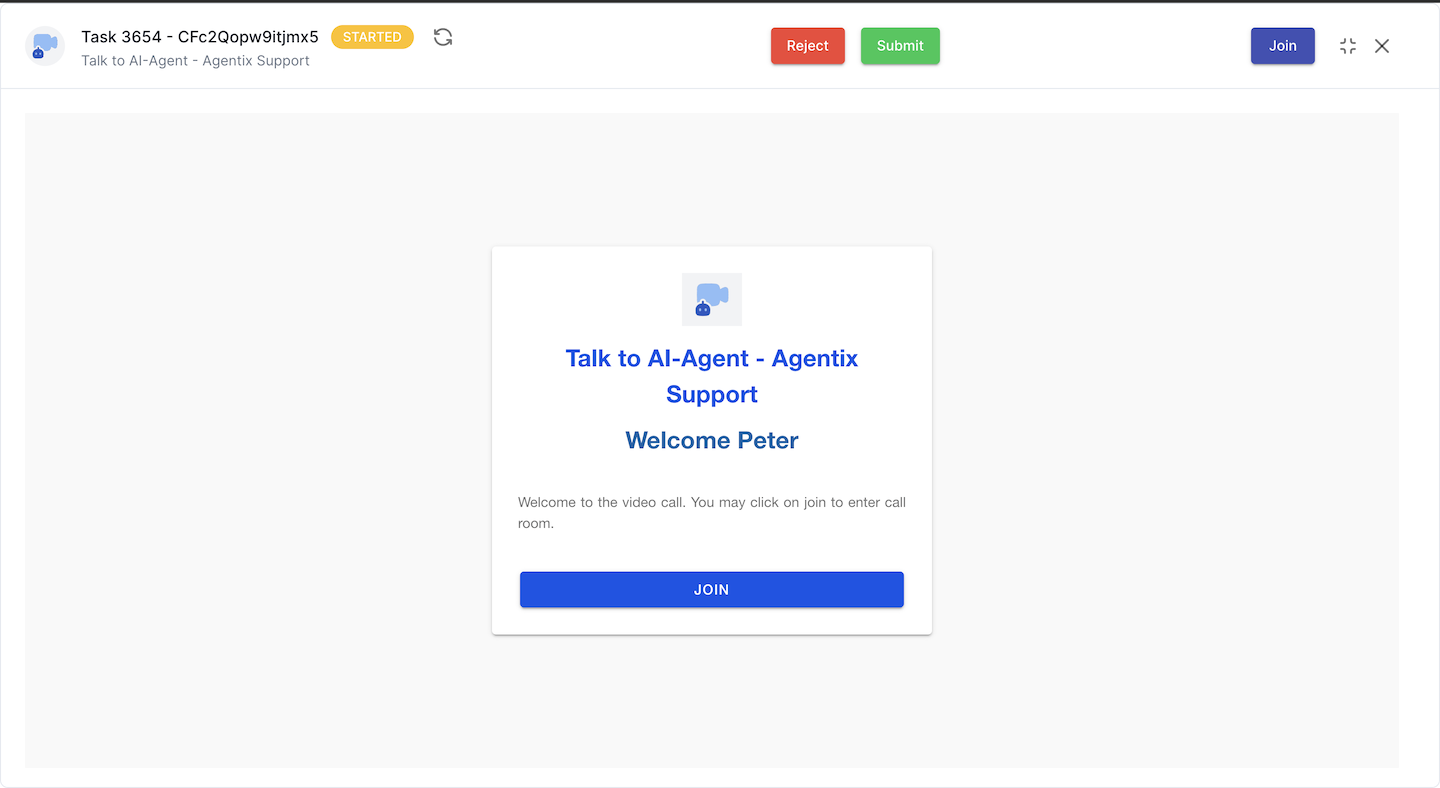
Guided tasks require real-time presence and may include chat or video tools.
5
✅ Submit Task
- Once the task is complete with the connected customer
-
Click Submit Task to finish your part of the job, so task marked completed and job progressed to next step
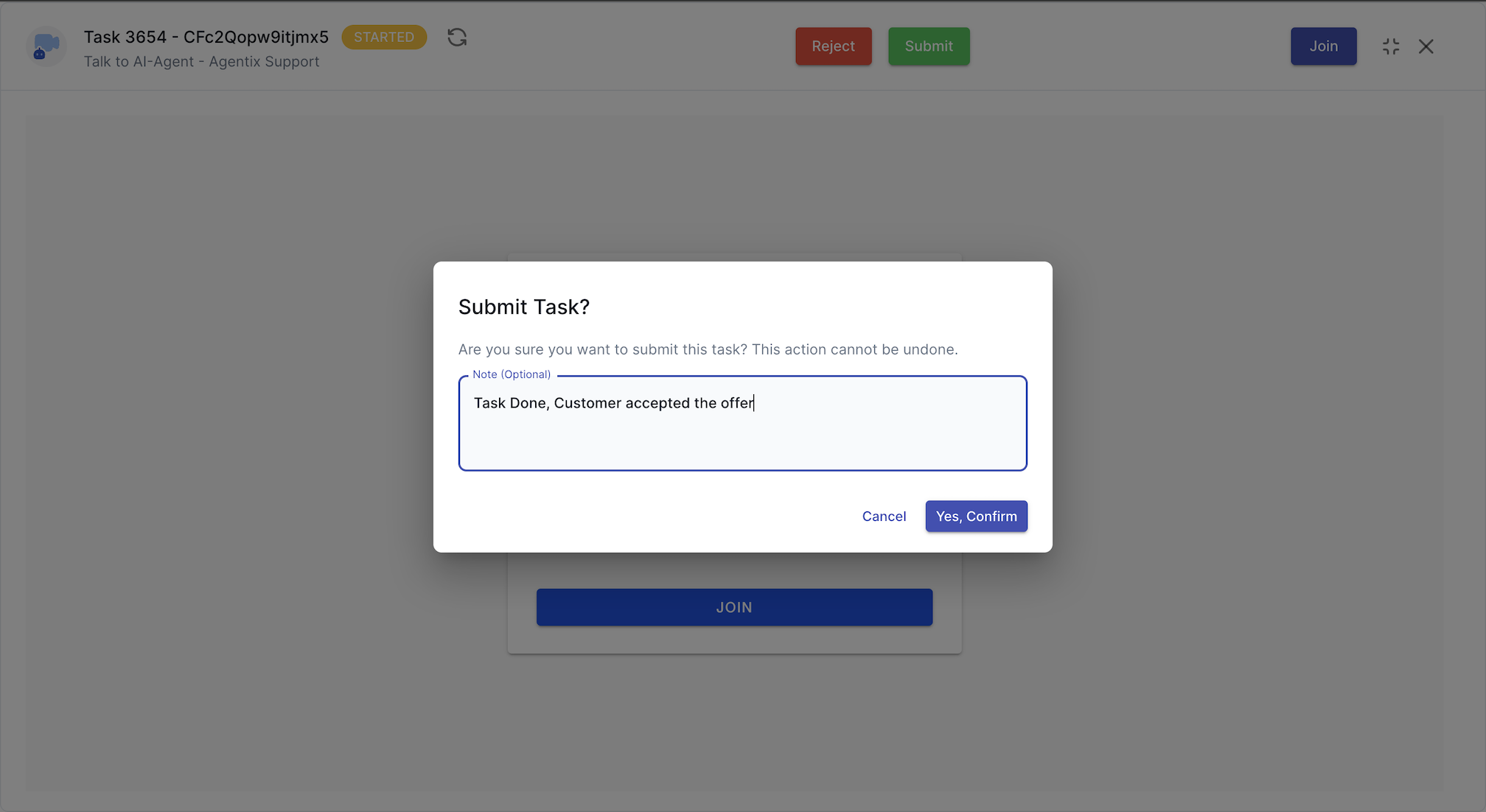
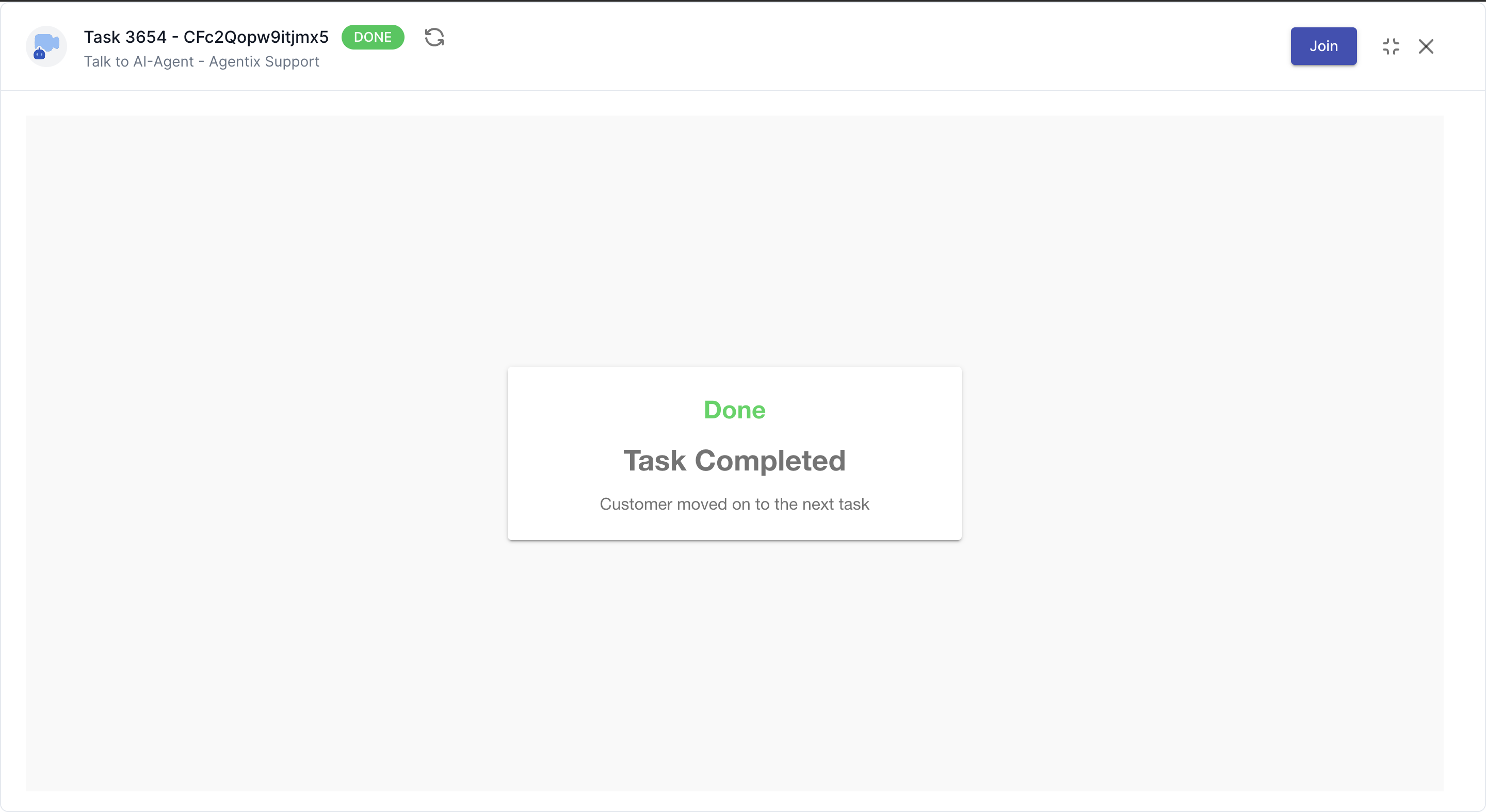
Submitting the task will either complete the job or pass it to the next step, depending on the workflow.
💡 Job-Hub users only see what they need — no configuration, no distractions. Just get the job done.