

guided
This PowerLink runs in guided mode — it launches a real-time session with a human or AI agent.
Key Features
🎙️ Live Audio or Video
Launch real-time calls powered by LiveKit (AI or human).
🤖 Supports AI Agents
Use AI agents to handle live sessions with integrated STT/LLM.
📞 Human Agent Routing
Connect the session to a waiting human agent (optional).
🌍 Language & Identity Control
Configure language, identity and session metadata dynamically.
How to Install
Go to the Store tab in Agentix cPanel, find Realtime and click Install to add it to your PowerLinks list.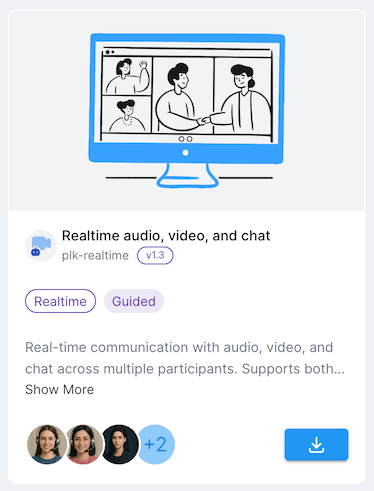
How it Works
When this PowerLink is triggered, it prepares session metadata, configures connection identity and launches a live session with either an AI agent (default) or a routed human agent. The session can include audio, video or chat and runs on LiveKit infrastructure.You can control the launch behavior using input parameters like
LANGUAGE, CALL_TYPE or TELEPHONY_WEB_PANEL_IDENTITY. The session is launched immediately after the task starts.This PowerLink is meant to be triggered from LaunchPad or via API. It’s ideal for workflows where customer input must be handled live in real time.
How it Looks for Customers
This is how the real-time session interface appears to customers when triggered by a LaunchPad or invitation link. The layout works across desktop and mobile, providing an intuitive experience for video or audio interactions.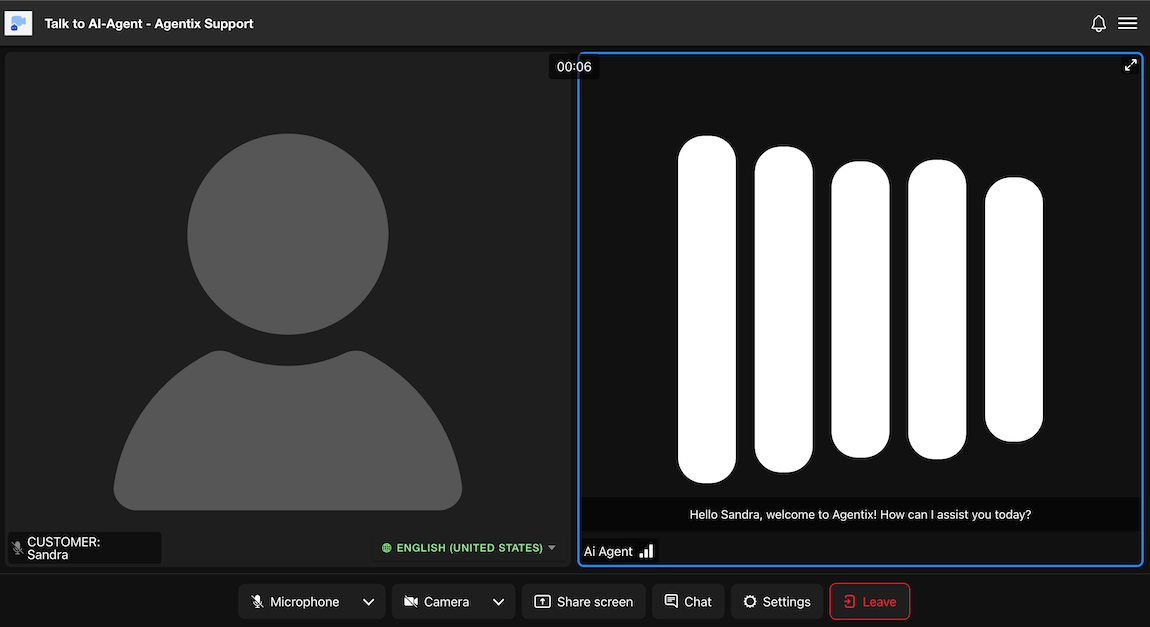
Key Interface Components
-
Left Panel (Customer View):
Displays the customer’s avatar or video feed (if camera is enabled). The name and language are shown at the bottom left. -
Right Panel (Agent View):
Shows the AI or human agent. When using AI, the agent displays a branding visual along with transcribed responses as subtitles. -
Bottom Toolbar:
Customers can mute/unmute their microphone, turn camera on/off, share screen, open chat, adjust settings or leave the session.
The AI or human agent handles the entire conversation. No manual submission or rejection is required from the customer side.
Sessions may be voice-only or video-enabled depending on your workflow configuration and assigned agent capabilities.
This interface also supports multiparty conferences. When additional participants join, the layout automatically adjusts to accommodate them.
Configuration Parameters
These parameters control the behavior of the Realtime PowerLink at the PowerLink level, such as call recording, pre-join prompts and outbound dialer settings.Show Configuration Parameters
Show Configuration Parameters
TEXT
Disclaimer text to display prior to joining the call. Supports basic HTML.
LIST
default:"ON"
Allow users to generate invitation links for guest users.
LIST
default:"OFF"
Enable or disable recording of the call session.
LIST
default:"grid"
Specify the layout for recorded output.
MULTI
Select which task actions to show or hide for the user (not the customer). The selected actions will appear in the user’s task actions menu.
MULTI
default:"en-US"
List of languages supported in the session. Displayed to the user during pre-join. Default language is always the first one in the list order.
You can add any language locale later and select it in the agent assignement.
LIST
default:"audio-video"
Specifies the initial mode for the session.
LIST
default:"OFF"
Hide or show the local participant’s title in the call interface.
TEXT
Trunk configuration for outbound dialer agent. Use this format:
{ TRUNK_NAME=telnyx-outbound-trunk, SIP_ADDRESS=sip.telnyx.com, AUTH_USERNAME=username, AUTH_PASSWORD=password }TEXT
Phone number to use for outbound calls.
LIST
default:"ON"
Enable/Disable action panel for the user.
MEDIA
Background image for AI agent during the conversation.
LIST
default:"3D-SPHERE"
Select the visualizer type for AI agent during the conversation.
| Value | Description | Preview |
|---|---|---|
BAR | Bar visualizer with audio wave patterns |  |
3D-SPHERE | 3D sphere visualizer with dynamic animations |  |
TEXT
Configuration options for the AI agent visualizer. This JSON object controls the appearance and behavior of the visualizer during different conversation states.Configuration Structure:Parameter Details:
width&height: Control the size of the visualizer canvas (recommended: 450x450)state_label: Shows current state text below visualizer when set to “ON”state_colors: Hex color codes for different conversation states- disconnected: No active connection
- connecting: Establishing connection to agent
- initializing: Loading agent and preparing session
- listening: Agent is actively listening to user input
- thinking: Agent is processing user request
- speaking: Agent is providing response
Use standard hex color codes (e.g., #FF0000 for red). Colors should provide good contrast and be accessible for all users.
TEXT
Message to display while waiting in the queue.
Agents
Here is list of available agents that can be used with this PowerLink. Each agent has its own set of parameters that can be configured to suit your use-case.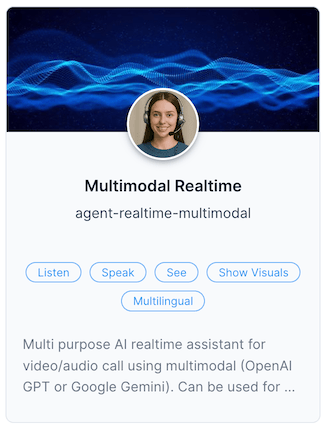
Multimodal Realtime Agent
AI Agent for video/audio calls using multimodal realtime LLMs (OpenAI GPT or Google Gemini) that support audio input and output in real time.
AI Agent for video/audio calls using multimodal realtime LLMs (OpenAI GPT or Google Gemini) that support audio input and output in real time.
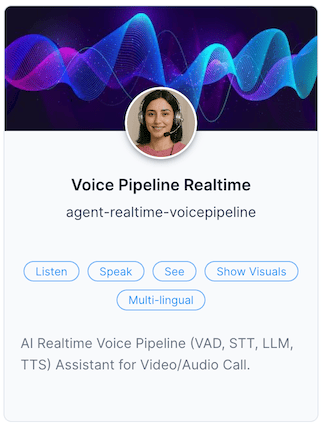
Voice Pipeline Realtime Agent
AI Agent for video/audio calls using a voice pipeline supporting different providers — voice activity detection, speech-to-text (STT), LLM processing and text-to-speech (TTS).
AI Agent for video/audio calls using a voice pipeline supporting different providers — voice activity detection, speech-to-text (STT), LLM processing and text-to-speech (TTS).
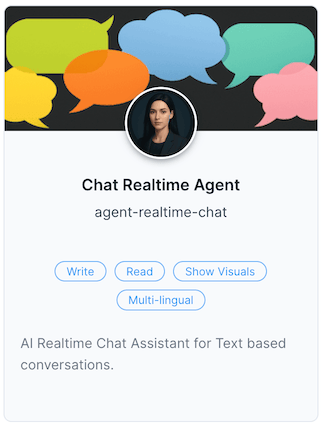
Chat Realtime Agent
AI Realtime Chat Assistant for text-based conversations, supporting different LLM text-to-text providers.
AI Realtime Chat Assistant for text-based conversations, supporting different LLM text-to-text providers.
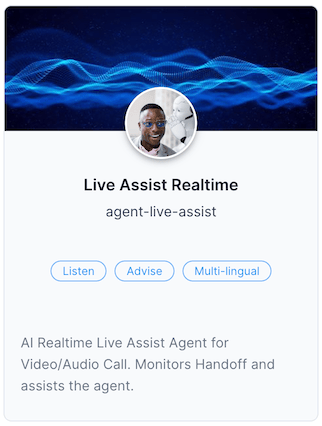
Live Assist Realtime Agent
AI Agent for video/audio calls. Silently listens to the customer and sends real-time text suggestions to the human agent on how to respond or answer user questions.
AI Agent for video/audio calls. Silently listens to the customer and sends real-time text suggestions to the human agent on how to respond or answer user questions.
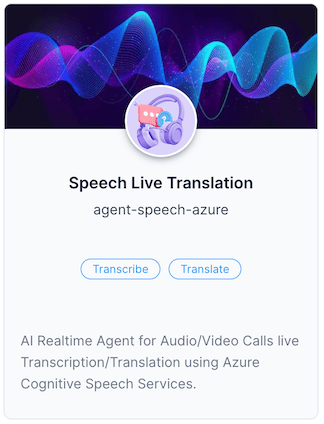
Speech Live Translation Agent
AI Agent for video/audio calls that transcribes and translates speech in real time using Azure Cognitive Speech Services.
AI Agent for video/audio calls that transcribes and translates speech in real time using Azure Cognitive Speech Services.
Use Cases
- Real-time sales or support assistance
- Interactive document review and guidance
- Video KYC, onboarding or ID verification
- On-demand call handling from LaunchPad or web forms
- AI agent-driven real-time surveys and lead capture
Getting Started
1
Create Action from Realtime PowerLink
After installing the PowerLink, go to PowerLinks in your cPanel, select Actions and click Create New Action using this PowerLink.
2
Assign Agent to Action
After creating the action, assign the appropriate Agent to handle the real-time task associated with this PowerLink.
3
Configure PowerLink Action Parameters
Set up the action’s configuration parameters such as 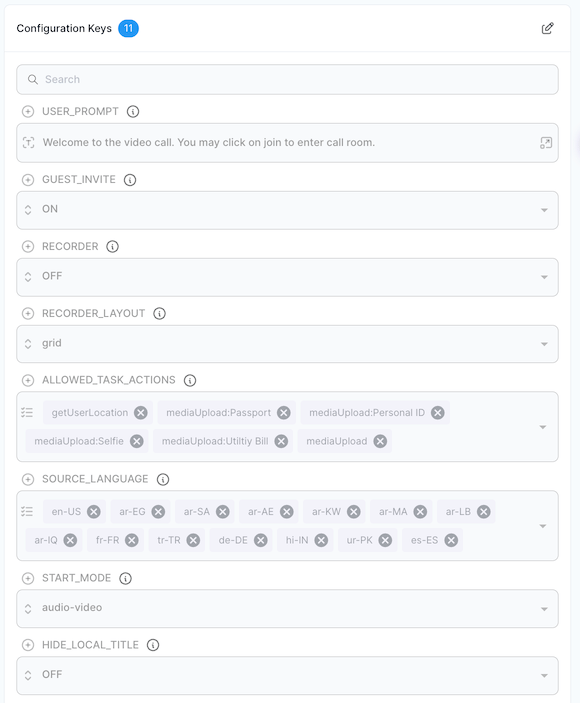
SOURCE_LANGUAGE or USER_PROMPT, depending on your expected usage scenario.4
Configure Agent Instructions, Sources and Tools
Define the instructions, knowledge sources and function tools required by the assigned agent to handle the conversation effectively.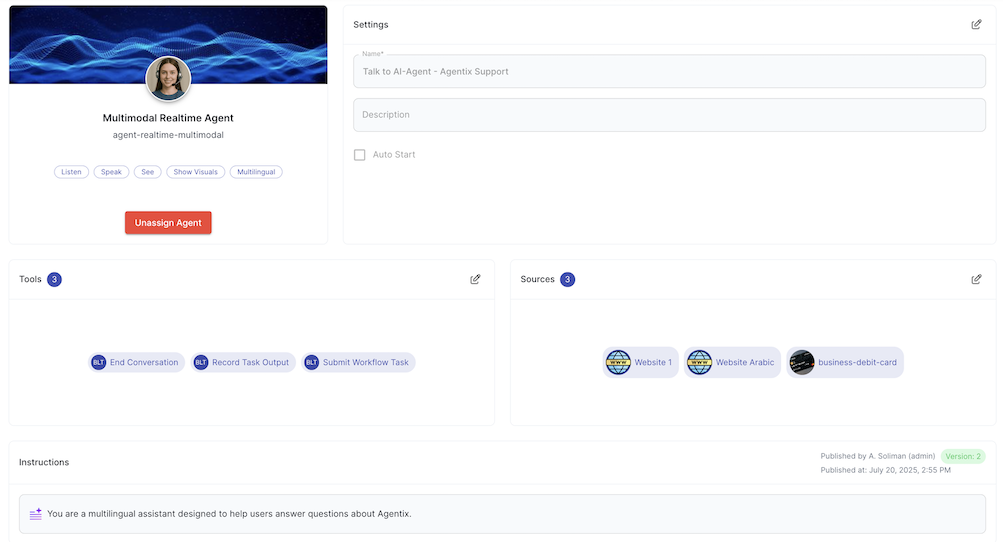
5
Attach to Workflow
Add the action to a workflow using workflow studio.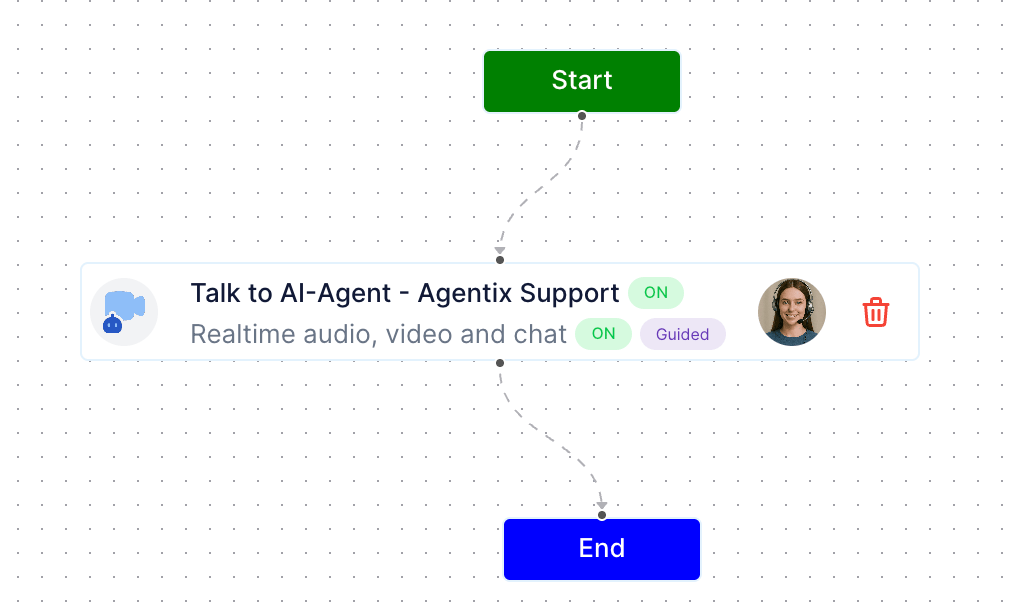
6
Test the Live Session
From LaunchPad or Create New Job or via API trigger, initiate a live session and confirm the agent joins, responds correctly and the task flow behaves as expected.