

automated
This PowerLink runs in automated mode — AI agents execute the task without human intervention.
⚠️ This PowerLink must be followed by a real-time interaction step (e.g., AI agent, human agent, co-browsing) in the same workflow. It does not handle the call conversation itself, only the call dispatch.It’s ideal for lead outreach, reminders or surveys — where the system needs to trigger real-time calls in a controlled and scalable way.
Key Features
📞 Outbound Call Dispatcher
Schedules and initiates outbound calls with queuing and concurrency control.
🔀 Workflow Bridge
Transfers control to the next real-time step for the actual conversation.
📋 Prompt Support
Optional screen prompt to show user a status while the call is being made.
📊 Scaleable Campaigns
Queue and manage hundreds of outbound calls across jobs using this dispatch model.
How to Install
Go to the Store tab in Agentix cPanel, find Outbound Dialer and click Install to add it to your PowerLinks list.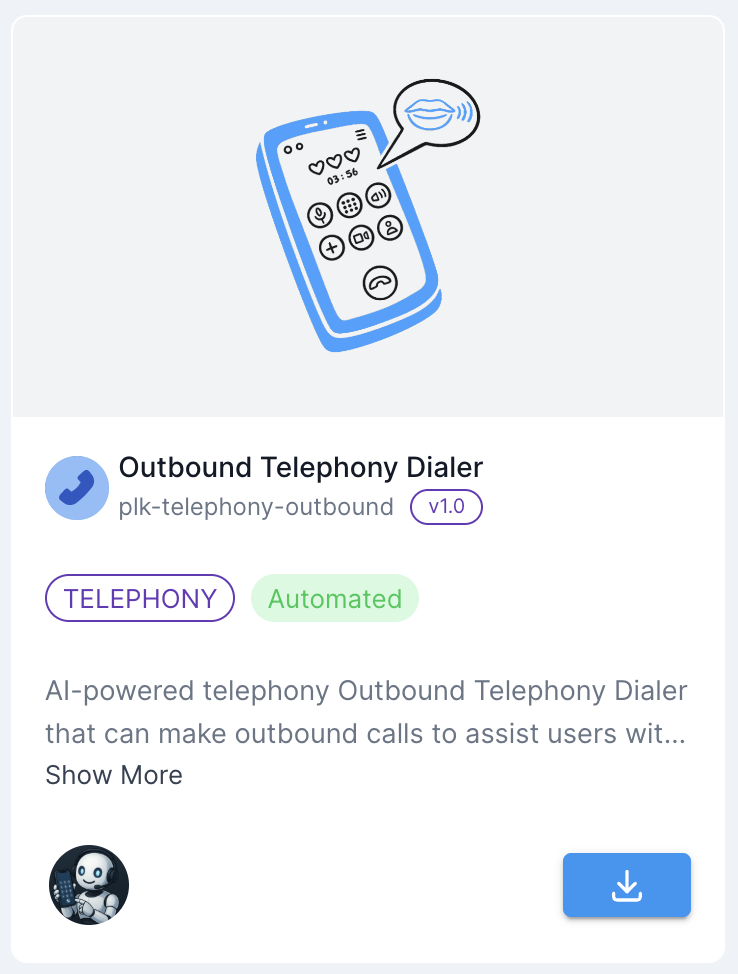
How it Works in the Background
This PowerLink operates without any user-facing interface. It runs automatically in the background to initiate the outbound call and manage its scheduling. There is no screen shown to the customer at this stage — the call is simply placed when a slot is available and the workflow proceeds to the next real-time interaction task once the call is connected.Once the outbound call is successfully placed, the job moves automatically to the real-time step for the customer interaction.
If the maximum number of concurrent outbound calls is reached, this task will wait for an available slot and retry automatically. This ensures controlled pacing of outbound dialing.
If the system is unable to place the call — for example, due to an invalid number, repeated unanswered attempts or all retry attempts being exhausted — the job will be marked as rejected and the workflow will not proceed unless designed to handle this case.
Prerequisites
This PowerLink uses the customer’s mobile number from the job context to place the outbound call.The mobile number used for dialing is retrieved from the customer record at the time the job is created (e.g.,
customer.mobile). Ensure the customer profile includes a valid phone number.If the customer’s mobile number is missing or invalid, the task will be automatically rejected and the workflow will not proceed unless explicitly designed to handle this failure.
Configuration Parameters
These parameters control the behavior of the Outbound Dialer PowerLink at the PowerLink level.Use Cases
- AI outbound calling campaigns
- Human agent callbacks
- Appointment confirmation calls
- Voice-based surveys or feedback collection
Getting Started
1
Create Action from Outbound Dialer PowerLink
After installing the PowerLink, go to PowerLinks in your cPanel, select Actions and click Create New Action.
2
Configure Prompt Message
Customize the optional
USER_PROMPT that appears while the system is placing the call.3
Attach Realtime PowerLink After It
In your workflow, this action must be immediately followed by a real-time interaction PowerLink — such as AI Voice Agent, Human Agent Panel or Co-Browsing session.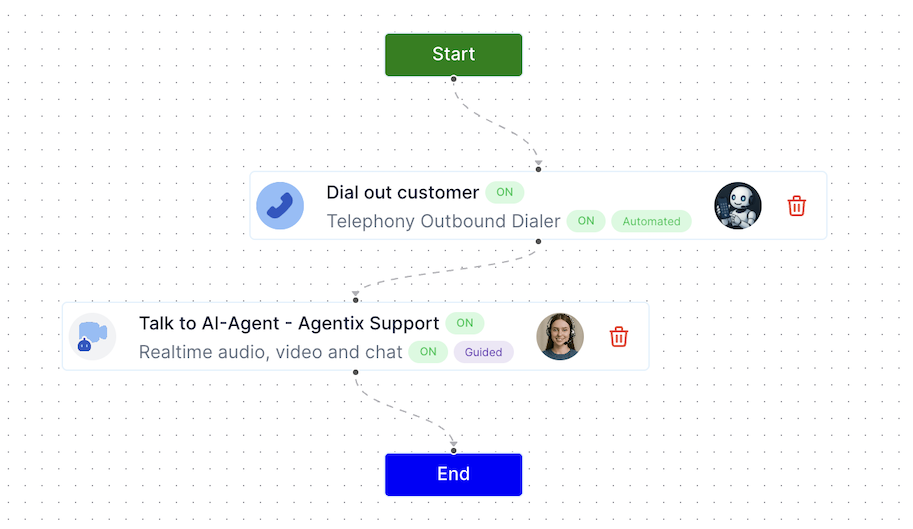
4
Test the Call Flow
Use LaunchPad Runner to simulate a complete job flow. Confirm the dialer dispatches the call and the next real-time task begins as expected.