> ## Documentation Index
> Fetch the complete documentation index at: https://docs.agentixhub.ai/llms.txt
> Use this file to discover all available pages before exploring further.
# Tools
> Define the tools your agents can use to take actions during a task
Tools enable agents to **take actions** during conversations — like showing media to the user, collecting documents or submitting tasks. Tools are assigned to each agent in the PowerLink configuration.
Tools are isolated by action — each agent only has access to the tools granted in that assignment.
## Types of Tools
Choose from a set of predefined tools like location capture, media display, handoff and workflow control.
Connect to an MCP server and fetch external tool definitions built outside Agentix.
***
## 🧰 Built-in Tools
Agentix comes with a variety of built-in tools that can be enabled per agent. These tools support key use cases like user interaction, task control and system integration.
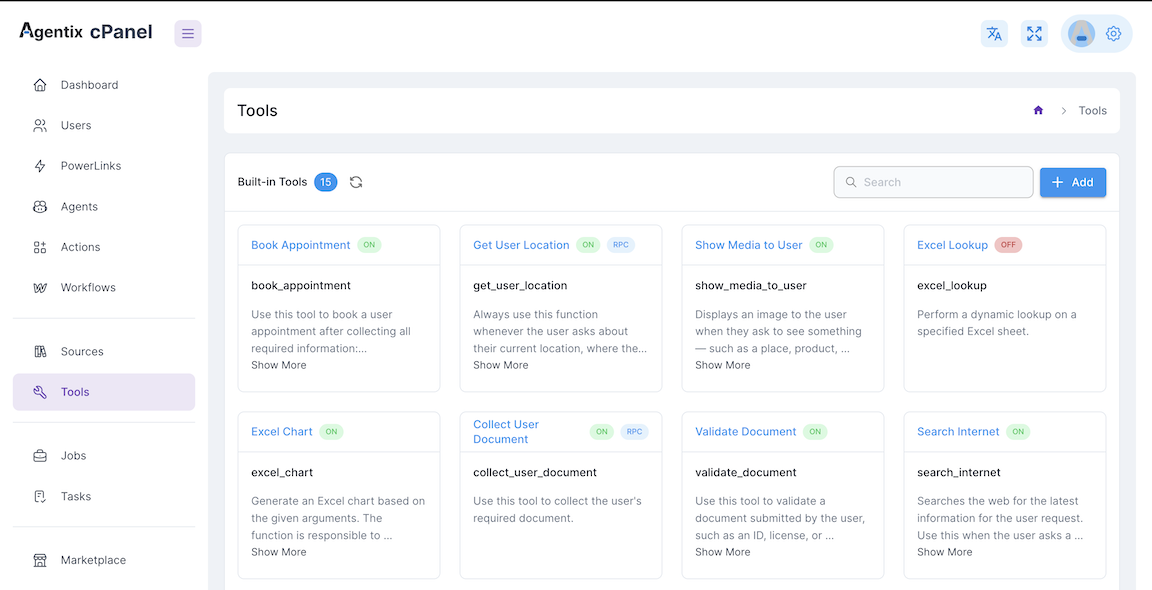 Build In Tools includes 2 categories:
* Tools executed at Agent-Side
* Tools executed at User-Side using RPC protocol
### Example of available Built-in Tools - Executed at Agent-Side
These tools are executed by the agent itself, allowing it to perform actions like searching the internet or showing media to the user.
Enables agents to search the web for current information not available in their training data or kb Sources.
Build In Tools includes 2 categories:
* Tools executed at Agent-Side
* Tools executed at User-Side using RPC protocol
### Example of available Built-in Tools - Executed at Agent-Side
These tools are executed by the agent itself, allowing it to perform actions like searching the internet or showing media to the user.
Enables agents to search the web for current information not available in their training data or kb Sources.
**Use Cases:**
* Research current events or trending topics
* Find product details, prices or specifications
* Gather real-time data and statistics
* Verify facts or get updated information
Allows agents to present visual materials directly to the user track.
**Use Cases:**
* Show product catalogs or image galleries
* Display forms, contracts or documentation
* Present charts, diagrams or infographics
* Share visual instructions or tutorials
Manages the lifecycle and outcomes of tasks within the workflow system.
**Functions:**
* `submit_workflow_task` - Marks task as complete and submits results
* `reject_workflow_task` - Rejects task with specified reasoning
* `record_task_output` - Saves task results for downstream processing
**Use Cases:**
* Quality assurance and approval workflows
* Task completion tracking and reporting
* Workflow state management and routing
Controls the flow between AI agents, human agents and conversation endings.
**Functions:**
* `handoff` - Transfers conversation to a human agent with context
* `cancel_handoff` - Cancels pending handoff requests
* `end_conversation` - Gracefully terminates the conversation
**Use Cases:**
* Escalating complex issues to human support
* Transferring specialized queries to experts
* Completing conversations after resolution
### Example of available Built-in Tools - Executed at User-Side
These tools are executed by the user while triggered by Agent, allowing them to provide information or perform visual actions that the agent can use.
Captures the user's real-time location data for location-based services and verification.
**Use Cases:**
* Finding nearby stores or service locations
* Delivery address verification and routing
* Location-based compliance and regulations
* Regional content customization
Enables secure document collection from users for verification and processing workflows.
**Use Cases:**
* Identity verification and KYC processes
* Insurance claim document submission
* Contract and agreement uploads
* Medical records and prescription collection
Creates dynamic forms with custom fields for gathering specific user information and data.
**Use Cases:**
* Customer registration and onboarding forms
* Survey and feedback data collection
* Order customization and preferences
* Contact information and profile updates
For telephony based interactions, users must use the collaboration web Panel through the invitation link to access these tools. ALLOW\_WEB\_PANEL shall be switched ON to enable this feature.
Built-in tools are ready to use — no configuration required.
***
## 🔌 MCP Tools
MCP (Model Context Protocol) tools allow you to connect your agent to external APIs or microservices that expose callable tools. These tools are defined and served by an MCP server.
### How MCP Tools Work
1. Define and run your MCP server (in Python or Node.js)
2. Each tool is defined with:
* Tool name
* Description / Usage Instructions
3. Add the MCP server URL in the Tools section
4. Add the tool names under the server
5. Select which tools from the server to enable for your agent in action
You can add multiple MCP servers to the same agent if needed.
### Example MCP Tool Definition
```python theme={null}
@mcp_tool(name="get_weather", description="Fetches current weather for a given city")
async def get_weather(city: str) -> dict:
...
```
Agentix will introspect the tool and make it callable via the assistant.
***
## Tool Readiness Matrix
| Tool Type | Definition Location | Setup Required | Usage Mode |
| -------------- | -------------------- | ---------------------------- | ----------------- |
| Built-in Tools | Agentix core runtime | None | Immediate |
| MCP Tools | External MCP server | Define tool + connect server | Pulled at runtime |
***
## How to Create and Assign Tools
Go to the **Tools** section in your Agentix cPanel.
* For built-in, check the tool names from the list
* For MCP, paste your MCP server URL and define which tools to expose
In your PowerLink configuration, navigate to the **Actions** tab and locate the **Tools** section after assigning Agent.
Select either **Built-in Tool** or **MCP Server Tool**.
Run a test job using this agent to verify the tools work as expected.
***
Next: Define what **Sources** your agent can access by visiting the [Sources](/user-guide/tools-sources/sources) section.