> ## Documentation Index
> Fetch the complete documentation index at: https://docs.agentixhub.ai/llms.txt
> Use this file to discover all available pages before exploring further.
# Sources
> Configure and manage data sources for your agents assignment
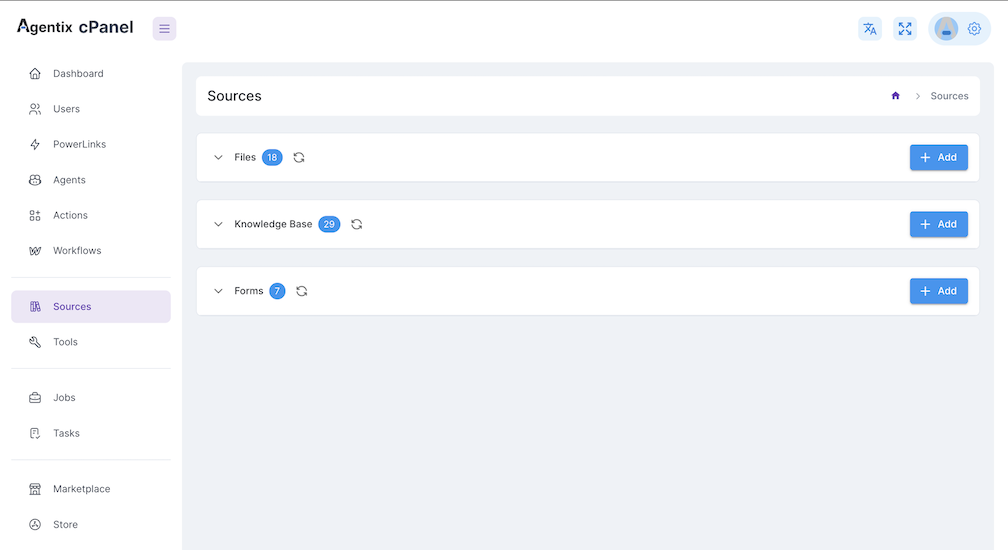
Sources enable agents to access external data, static content or dynamic inputs during a task. They are centrally defined and assigned to agents per action, allowing flexible access to files, records and forms across workflows.
Sources are globally managed and reusable across different workflows and agent assignments.
## Types of Sources
Upload files like PDFs, images, Excel or DOCX that can be previewed by agents or shown to users during a task.
Index content from files, URLs or text and allow agents to query this data using retrieval-augmented generation (RAG).
Define interactive HTML forms to collect user input during tasks, shown dynamically to the user by the agent.
***
## Static Files
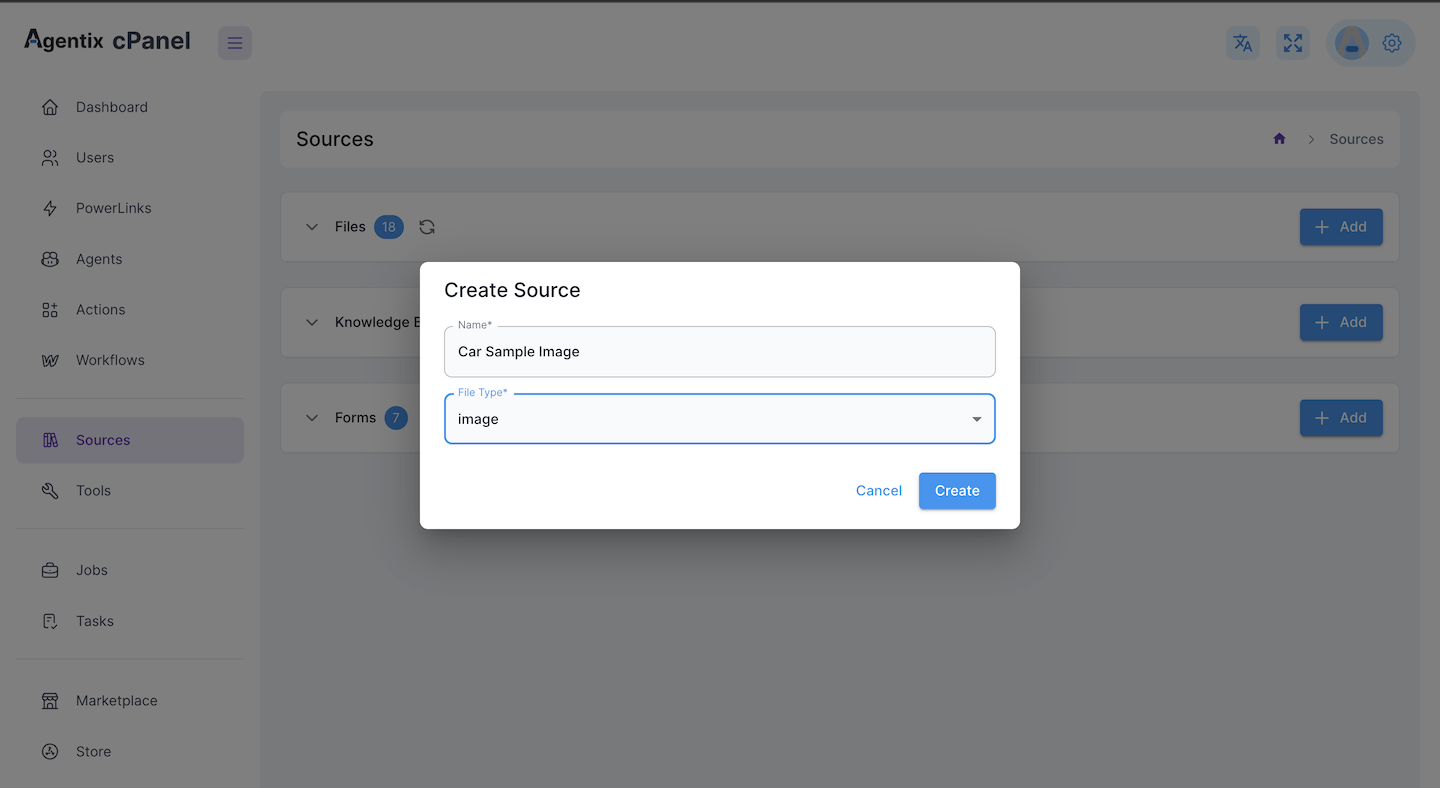
Static files are uploaded assets that can be shown to the user or previewed by the agent as part of a task. Common file types include:
* Images (PNG, JPG, etc.)
* PDFs
* Excel sheets
* DOCX or text documents
These files are **ready to use immediately** once uploaded.
Static files do not require processing — they are usable as soon as they’re uploaded.
### Example of Image - Static File Source
***
## 📚 Knowledge Base (RAG)
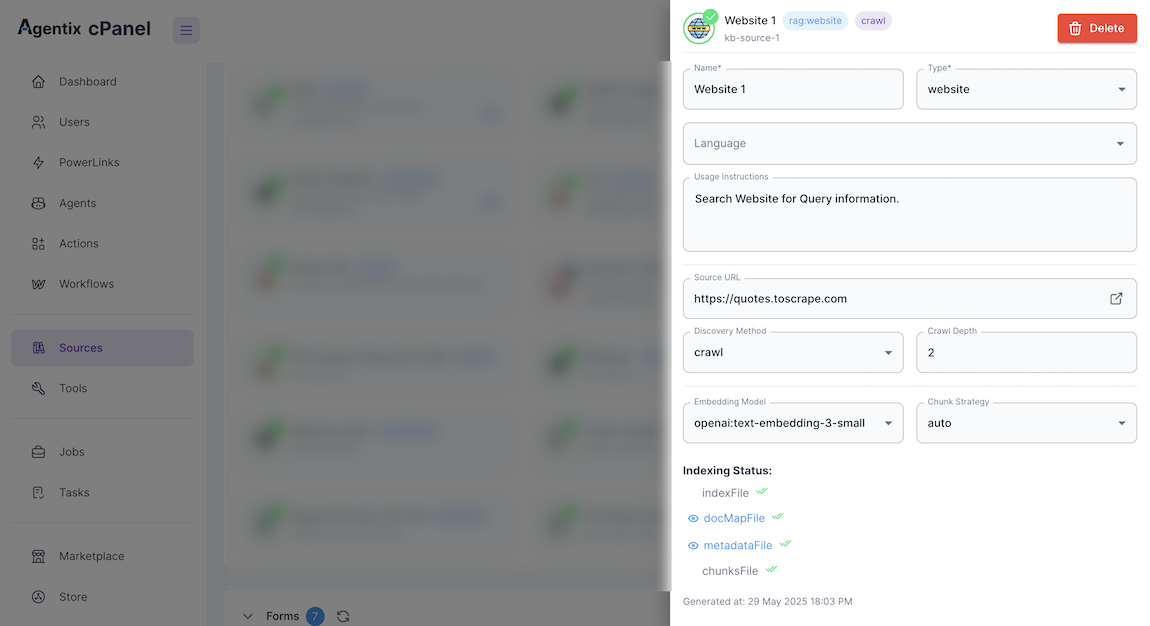
Knowledge Base sources enable agents to perform contextual search using retrieval-augmented generation (RAG). This allows an agent to answer user questions based on:
* Uploaded files (PDF, TXT)
* Website URLs
* Raw pasted text
Each knowledge source goes through a background indexing pipeline and may have the following statuses:
| Status | Meaning |
| ------------ | ----------------------------------------------- |
| `draft` | Newly created and not yet processed |
| `processing` | Currently being indexed |
| `ready` | Available for use by agents |
| `failed` | Indexing failed due to format or content issues |
Agents can only query RAG sources once the status is `ready`.
### Example of Knowledge Base Source
***
## 📝 Forms
Forms allow you to collect structured input from users during a conversation. These are defined using valid HTML `
```
The agent can reference the submitted values and decide how to proceed — for example, validating a document or continuing a transaction.
## Source Readiness Matrix
| Source Type | Input Format | Readiness Rules | Agent Usage |
| -------------- | ----------------------- | ------------------------------- | ------------------ |
| Static Files | Image, PDF, Excel, DOCX | Immediately ready once uploaded | Preview or display |
| Knowledge Base | PDF, TXT, URL, Text | Must reach `ready` status | Queried for RAG |
| Forms | HTML form block | Must be valid HTML | Rendered to user |
## How to Create a Source
Navigate to **Sources** in the sidebar to manage or add new sources.
Choose between Static Files, Knowledge Base or Form.
* Upload file / paste text / insert HTML form
Give your source a name and optional tags. For RAG, wait for `ready` status before using.
***
Continue to the [Tools](/user-guide/tools-sources/tools) section to define what your agents can **do** with these sources.
 ***
## 📚 Knowledge Base (RAG)
Knowledge Base sources enable agents to perform contextual search using retrieval-augmented generation (RAG). This allows an agent to answer user questions based on:
* Uploaded files (PDF, TXT)
* Website URLs
* Raw pasted text
Each knowledge source goes through a background indexing pipeline and may have the following statuses:
| Status | Meaning |
| ------------ | ----------------------------------------------- |
| `draft` | Newly created and not yet processed |
| `processing` | Currently being indexed |
| `ready` | Available for use by agents |
| `failed` | Indexing failed due to format or content issues |
***
## 📚 Knowledge Base (RAG)
Knowledge Base sources enable agents to perform contextual search using retrieval-augmented generation (RAG). This allows an agent to answer user questions based on:
* Uploaded files (PDF, TXT)
* Website URLs
* Raw pasted text
Each knowledge source goes through a background indexing pipeline and may have the following statuses:
| Status | Meaning |
| ------------ | ----------------------------------------------- |
| `draft` | Newly created and not yet processed |
| `processing` | Currently being indexed |
| `ready` | Available for use by agents |
| `failed` | Indexing failed due to format or content issues |
 ***
## 📝 Forms
Forms allow you to collect structured input from users during a conversation. These are defined using valid HTML `
```
The agent can reference the submitted values and decide how to proceed — for example, validating a document or continuing a transaction.
## Source Readiness Matrix
| Source Type | Input Format | Readiness Rules | Agent Usage |
| -------------- | ----------------------- | ------------------------------- | ------------------ |
| Static Files | Image, PDF, Excel, DOCX | Immediately ready once uploaded | Preview or display |
| Knowledge Base | PDF, TXT, URL, Text | Must reach `ready` status | Queried for RAG |
| Forms | HTML form block | Must be valid HTML | Rendered to user |
## How to Create a Source
***
## 📝 Forms
Forms allow you to collect structured input from users during a conversation. These are defined using valid HTML `
```
The agent can reference the submitted values and decide how to proceed — for example, validating a document or continuing a transaction.
## Source Readiness Matrix
| Source Type | Input Format | Readiness Rules | Agent Usage |
| -------------- | ----------------------- | ------------------------------- | ------------------ |
| Static Files | Image, PDF, Excel, DOCX | Immediately ready once uploaded | Preview or display |
| Knowledge Base | PDF, TXT, URL, Text | Must reach `ready` status | Queried for RAG |
| Forms | HTML form block | Must be valid HTML | Rendered to user |
## How to Create a Source