> ## Documentation Index
> Fetch the complete documentation index at: https://docs.agentixhub.ai/llms.txt
> Use this file to discover all available pages before exploring further.

# Rec. Analyzer

> AI-powered analysis and review of recorded conversations

<div
  style={{
border: '1px solid #14b8a6',
borderRadius: '6px',
padding: '8px 12px',
fontSize: '0.85rem',
backgroundColor: 'rgba(20, 184, 166, 0.05)',
}}
>
  <div className="badge-automated">automated</div>

  <div>
    This PowerLink runs in automated mode — AI agents execute the task without human intervention.
  </div>
</div>

The **Recording Analyzer** PowerLink provides an **AI-powered review layer** for analyzing recorded conversations such as calls, meetings, voice memos or uploaded audio files. It converts speech to text, extracts insights, applies a customizable evaluation rubric  and generates structured reports for downstream automation or compliance.

> ⚠️ This PowerLink runs automatically and does not interact with the user. It can be used to analyze **any pre-recorded audio or video**, whether from a real-time session or external upload.

## Key Features

<CardGroup cols={2}>
  <Card title="📝 Transcription + Speaker ID">
    Converts speech to text with speaker labels and timestamps.
  </Card>

  <Card title="📊 Scorecard Evaluation">
    Applies a configurable evaluation rubric using AI assistance.
  </Card>

  <Card title="🧠 LLM-Based Insights">
    Uses GPT models to extract structured observations and summaries.
  </Card>

  <Card title="📄 Report Generation">
    Produces a detailed HTML report and JSON output for easy review.
  </Card>
</CardGroup>

## How to Install

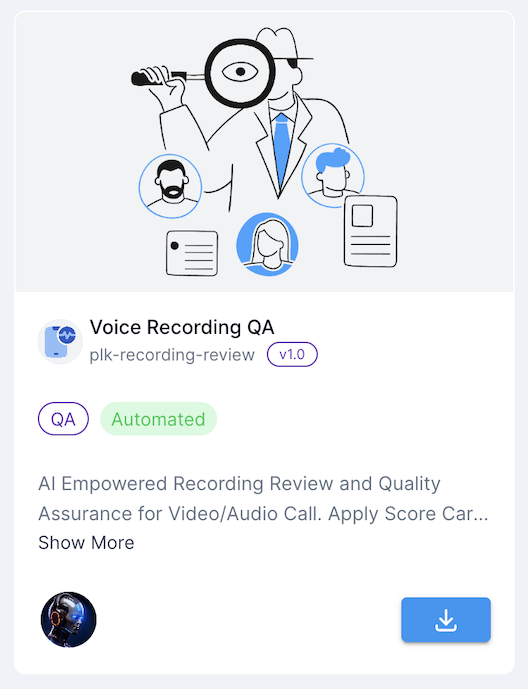
Go to the **Store** tab in Agentix cPanel, find **Recording Analyzer**  and click **Install** to add it to your PowerLinks list.

<img src="https://mintcdn.com/agentix-5c0a3d87/3fWHT_5u43zyi8Am/user-guide/images/catalogue-recording-review.png?fit=max&auto=format&n=3fWHT_5u43zyi8Am&q=85&s=693af91f9914d2babd5a3b8e67cceb13" alt="Catalogue snapshot" className="rounded-xl my-6 shadow" width={250} data-path="user-guide/images/catalogue-recording-review.png" />

## How it Works

This PowerLink processes one or more uploaded recording files as input. Each input must be provided with a type of `MEDIA`  and may contain either audio or video content. The agent performs transcription, applies AI-based evaluation and summarization  and then generates structured QA reports — one for each file. It’s fully automated and non-interactive.
<Check>
  Once the media files are provided, the PowerLink transcribes each one individually, applies the evaluation rubric  and generates both HTML and JSON reports for downstream review.
</Check>

<Note>
  Ensure that each file input is set with type `MEDIA`. You can upload multiple recordings in the same job — each will be analyzed independently.\
  For best transcription results, the recording’s **spoken language locale** should match the expected input for your selected STT model (e.g., `en-US`, `ar-SA`).
</Note>

## Agents

Here is list of available agents that can be used with this PowerLink. Each agent has its own set of parameters that can be configured to suit your use-case.

<Card horizontal>
  <div id="agent-multimodal" className="flex items-center gap-4">
    <div className="w-20 h-auto flex-shrink-0">
      <img src="https://mintcdn.com/agentix-5c0a3d87/nRZdjUb99nMM2ncE/user-guide/images/recording-review-agent.png?fit=max&auto=format&n=nRZdjUb99nMM2ncE&q=85&s=4a2819d48043854212f3fc8d6b01a53e" alt="Recording Review Agent" className="rounded-sm w-full h-full object-contain m-0" width="261" height="342" data-path="user-guide/images/recording-review-agent.png" />
    </div>

    <div>
      <strong className="text-lg">Recording Review Agent</strong><br />
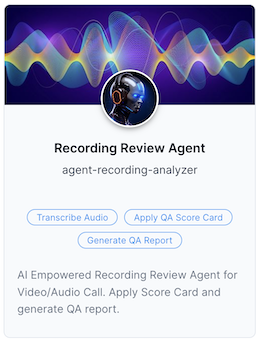
      AI-powered agent that analyzes audio or video recordings, applies a QA scorecard  and generates detailed reports with transcription, scoring and LLM-generated insights.
    </div>
  </div>

  <Expandable title="Agent Parameters">
    <ParamField path="STT" type="LIST" default="azure">
      Select the speech-to-text engine used for transcription.
    </ParamField>

    | STT Options                     | Description                                                     |
    | ------------------------------- | --------------------------------------------------------------- |
    | `azure`                         | Uses Microsoft Azure’s speech-to-text engine for transcription. |
    | `openai:whisper-1`              | Uses OpenAI Whisper model via API for transcription.            |
    | `openai:gpt-4o-mini-transcribe` | Uses GPT-4o mini for quick, accurate transcription.             |
    | `openai:gpt-4o-transcribe`      | Uses full GPT-4o for advanced transcription accuracy.           |

    <ParamField path="LLM" type="LIST" default="openai:gpt-3.5-turbo">
      Select the large language model used to generate insights and apply the evaluation logic.
    </ParamField>

    | LLM Options            | Description                                             |
    | ---------------------- | ------------------------------------------------------- |
    | `openai:gpt-3.5-turbo` | Fast and cost-effective general-purpose model.          |
    | `openai:gpt-4o-mini`   | Optimized GPT-4o mini model for quality insights.       |
    | `openai:gpt-4o`        | Full GPT-4o model for maximum performance and accuracy. |

    <ParamField path="EVALUATION_INSTRUCTIONS" type="TEXT" format="MARKDOWN">
      Markdown-formatted scorecard or rubric that guides the AI during evaluation. You can define sections like Clarity, Empathy, Resolution, etc.
    </ParamField>

    <ParamField path="REPORT_HTML_TEMPLATE" type="TEXT" format="HTML">
      Custom HTML layout for rendering the final QA report.
    </ParamField>

    <ParamField path="LLM_OUTPUT_JSON_SCHEMA" type="TEXT" format="JSON">
      The expected structure of AI output used to fill the report.
    </ParamField>
  </Expandable>
</Card>

## Use Cases

* Post-call conversation review
* Meeting or interview analysis
* Sales and support compliance
* Customer complaint and voice memo review
* Coaching and feedback workflows

## Getting Started

<Steps>
  <Step title="Create Action from Recording Analyzer">
    After installing the PowerLink, go to **PowerLinks** in your cPanel, select **Actions**  and click **Create New Action** using this PowerLink.
  </Step>

  <Step title="Configure STT and LLM">
    Choose the transcription engine and AI model for evaluation.
  </Step>

  <Step title="Customize Evaluation Rubric">
    Edit the `EVALUATION_INSTRUCTIONS` to reflect your own scorecard, KPIs or compliance checklist.
  </Step>

  <Step title="Provide Audio or Video Recording as Input">
    This PowerLink analyzes any **voice or video recording** provided as task input. You can upload one or more files with type `MEDIA`  and the PowerLink will process each recording to generate its own structured evaluation report. You can test this directly from the **cPanel -> Jobs** by creating a job and attaching this PowerLink with the desired recordings. There’s no need to use LaunchPad  and the task supports **multiple recordings in parallel**.
  </Step>

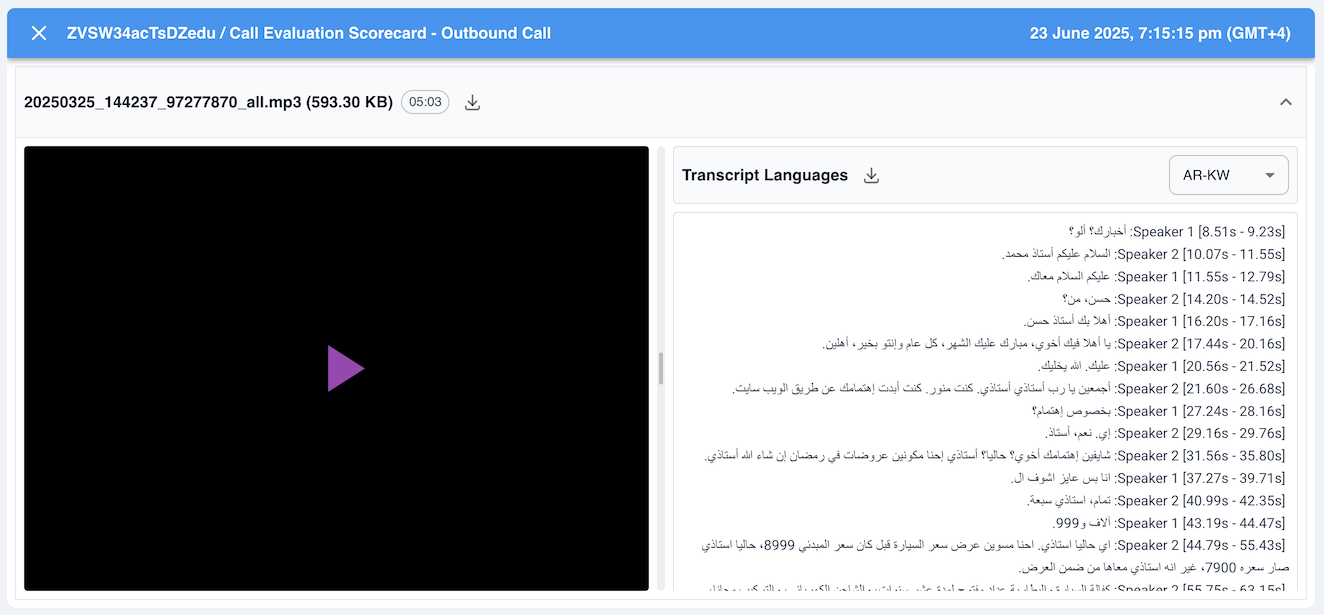
  <Step title="View Transcript & Generated Report">
    Once Task completed and marked DONE, view the task details to access the full transcript, extracted insights and formatted QA or compliance report.

    <img src="https://mintcdn.com/agentix-5c0a3d87/nRZdjUb99nMM2ncE/user-guide/images/recording-review-output.png?fit=max&auto=format&n=nRZdjUb99nMM2ncE&q=85&s=34c66cfc0500744d33fc9a1287c78b83" alt="Sample Output" className="rounded-lg" width="1324" height="615" data-path="user-guide/images/recording-review-output.png" />
  </Step>
</Steps>
