 ## 🔍 How to Use the Catalogue
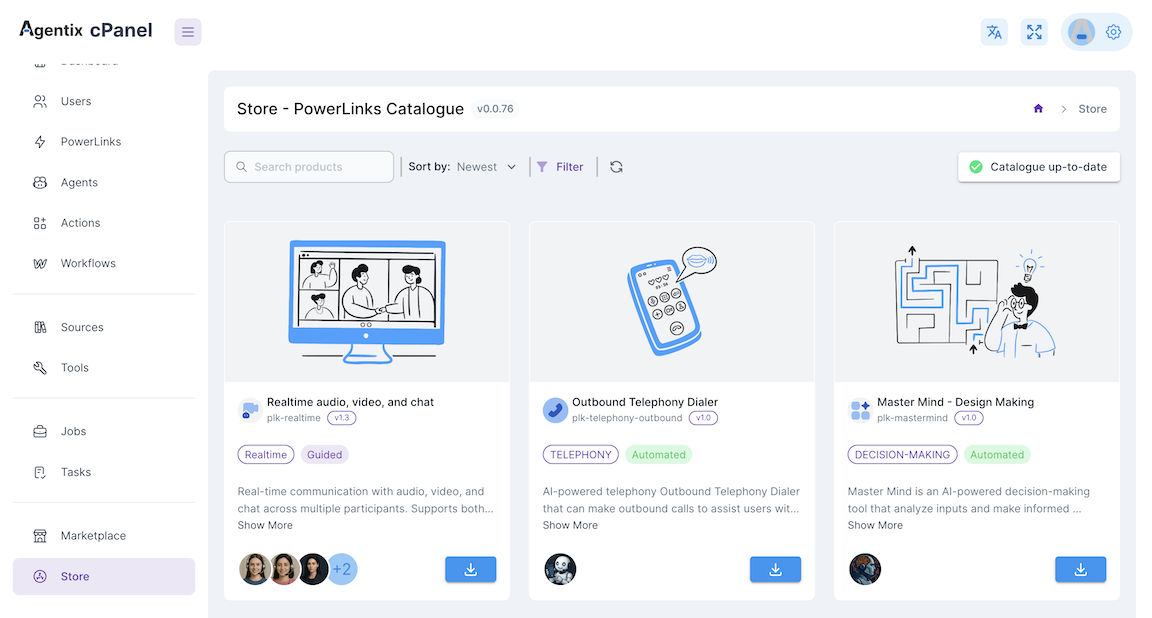
You can **browse**, **preview** and **install** PowerLinks from the cPanel sidebar under **Store → Catalogue**:
1. **Open the Catalogue**
2. **Filter or search** by type, category or keyword
3. Click any PowerLink to explore its:
* 🧾 Description and use cases
* 🤖 Supported AI-Agents
* ⚙️ Configuration specs
* 💰 Pricing model (Quota or Concurrent)
## ⚙️ Installing a PowerLink
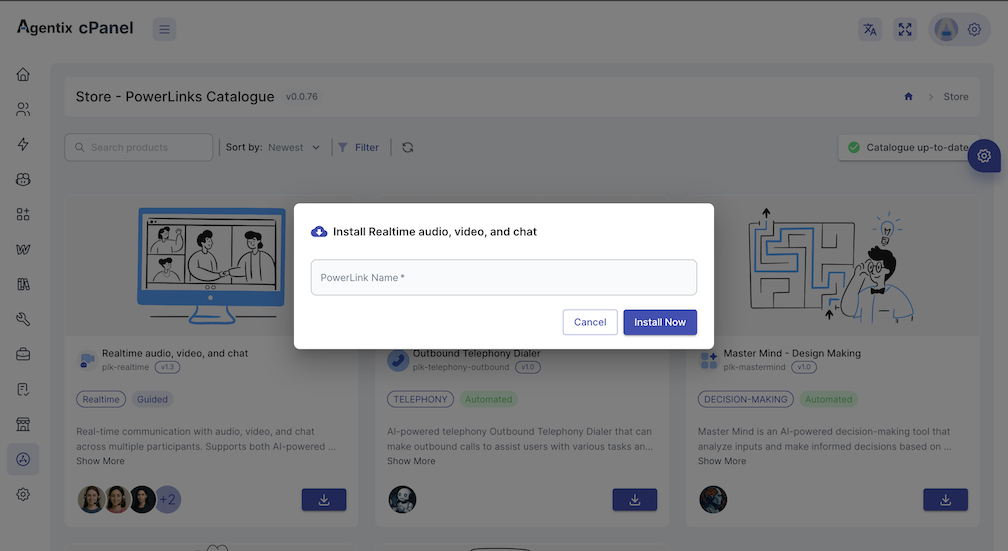
To install a PowerLink:
1. Click **Install** on the PowerLink card
2. Review the included configuration specs and default settings
3. Save and proceed to create **Actions** using the PowerLink
4. Assign agents, instructions, tools and sources to each Action
## 🔍 How to Use the Catalogue
You can **browse**, **preview** and **install** PowerLinks from the cPanel sidebar under **Store → Catalogue**:
1. **Open the Catalogue**
2. **Filter or search** by type, category or keyword
3. Click any PowerLink to explore its:
* 🧾 Description and use cases
* 🤖 Supported AI-Agents
* ⚙️ Configuration specs
* 💰 Pricing model (Quota or Concurrent)
## ⚙️ Installing a PowerLink
To install a PowerLink:
1. Click **Install** on the PowerLink card
2. Review the included configuration specs and default settings
3. Save and proceed to create **Actions** using the PowerLink
4. Assign agents, instructions, tools and sources to each Action
 ### ✅ After Installation
Once installed:
* Configure the PowerLink’s specs (language, handoff mode, etc.)
* Create **Actions** using this PowerLink
* Link the Actions to a **Workflow**
* Launch and monitor Jobs using LaunchPad or QR code
## 🔄 Update the Catalogue
Use the **Update** button on the Catalogue page to sync your local store with the latest available PowerLinks from the online marketplace.
This ensures you:
* Have access to new PowerLinks added by the platform
* Get the latest version and specs of existing PowerLinks
* See updated agent compatibility and pricing
> 💡 You can update at any time — no configurations are overwritten unless the PowerLink was previously installed.
## 💡 Understanding Service Modes
Powerlinks are avaiable with the following service-modes:
### ✅ After Installation
Once installed:
* Configure the PowerLink’s specs (language, handoff mode, etc.)
* Create **Actions** using this PowerLink
* Link the Actions to a **Workflow**
* Launch and monitor Jobs using LaunchPad or QR code
## 🔄 Update the Catalogue
Use the **Update** button on the Catalogue page to sync your local store with the latest available PowerLinks from the online marketplace.
This ensures you:
* Have access to new PowerLinks added by the platform
* Get the latest version and specs of existing PowerLinks
* See updated agent compatibility and pricing
> 💡 You can update at any time — no configurations are overwritten unless the PowerLink was previously installed.
## 💡 Understanding Service Modes
Powerlinks are avaiable with the following service-modes: